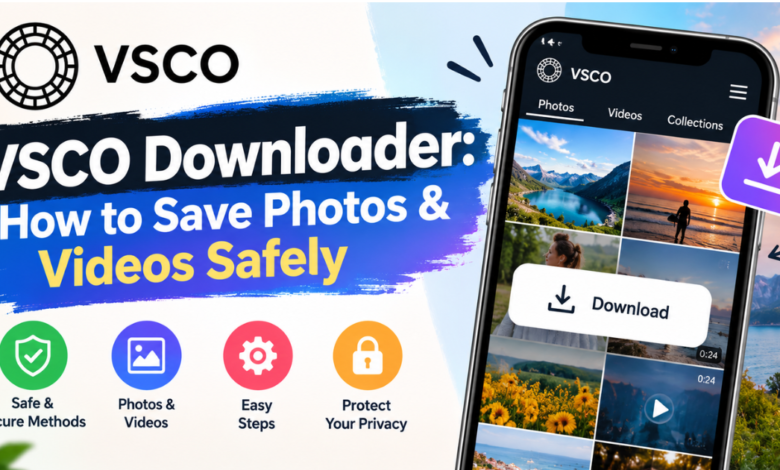
You find a VSCO photo you love. Maybe it’s your own edit, or a friend’s shoot you have permission to keep. You tap and hold, but the app gives you no obvious download button. That gap is why people search for a VSCO downloader. This guide explains how these tools work, where the risks are, and which methods save your images safely.
Not every method is equal. Some tools deliver crisp, full-size files. Others bury you in pop-ups or ask for details they have no business collecting. Below, you’ll find step-by-step instructions, a comparison table, a safety checklist, and fixes for common errors. Use it to pick the safest option for your situation.
What Is a VSCO Downloader and How Does It Work
A VSCO downloader is a tool that saves photos or videos from VSCO to your phone or computer. Most work through a web page. You paste the link to a post, and the tool fetches the media file from VSCO’s public page. Then it gives you a download button. Others run as browser extensions or mobile apps.
Behind the scenes, the tool reads the post’s public page and finds the address of the image or video file. It then lets you save that file, usually as a JPG for photos or an MP4 for videos. Quality depends on what VSCO serves publicly. A good VSCO photo downloader keeps the full resolution. Weaker tools compress files or add watermarks.
Common types of VSCO downloaders
Most tools fall into a few groups. Knowing the difference helps you pick the right one for your task.
- Web-based downloaders: You paste a link into a website and download the file. No installation needed.
- Browser extensions: These add a save button inside your browser. They need permissions, so check them carefully.
- Mobile apps: These run on Android or iOS. App store review helps, but it doesn’t guarantee safety.
- Bulk or profile downloaders: These grab many posts at once. They raise the biggest copyright and terms-of-service concerns.
Is Using a VSCO Downloader Legal and Safe
Start with ownership. Photos on VSCO belong to the people who created them. In the United States, copyright protection applies automatically once someone makes an image. Saving a photo for private reference is very different from reposting it, selling it, or using it in an ad. When in doubt, ask the creator for permission. I’m not a lawyer, so check the law for your situation.
VSCO’s terms of service also matter. Platforms often limit automated copying and scraping, and rules change over time. Read the current terms before you use any bulk or profile downloader. Downloading your own content, or content shared with your clear consent, is the lowest-risk path. Using a VSCO downloader to collect strangers’ work in bulk is where problems start.
Copyright and permission
Ask yourself three questions before you download:
- Did I create this image?
- Do I have written or clear verbal permission from the creator?
- Will I use it only for personal reference?
If you answered no to all three, skip the download. Link to the original post or message the creator instead.
Security risks to avoid
Free download sites make money from ads, and some ads are deceptive. You may see fake “Download” buttons, forced redirects, or prompts to install software. Treat these as warning signs. A legitimate tool needs only a link to the post. It never needs your VSCO password, email login, or payment details.
- Never enter your VSCO password on a third-party site.
- Skip tools that demand a software install for a single photo.
- Close pop-ups that claim your device is infected.
- Use an updated browser with a trusted ad or malware blocker.
How to Use a VSCO Downloader Step by Step
The process is similar for most web tools. Here is the quickest way to save a public VSCO photo or video, assuming you have permission to keep it.
- Open the VSCO post you want to save in your browser or the app.
- Copy the post’s link using the share or copy-link option.
- Open a reputable VSCO downloader in a new browser tab.
- Paste the link into the input box and press the download or fetch button.
- Preview the file the tool shows you.
- Click the real download button, not the large ads around it.
- Check the saved file’s quality and format on your device.
These steps work the same on iPhone, Android, and desktop. On a phone, files usually land in your Downloads folder or Photos app. On a computer, check your browser’s default download folder. If the tool fails on the first try, refresh the page and paste the link again.
A quick example shows how this goes in practice. Say a photographer friend posts a landscape and agrees to send you the file for a mood board. You copy the post link, paste it into a web tool, and save the JPG. Then you rename it with your friend’s name so you can credit them later. That small habit keeps your files organized and respects the creator.
Save Your Own VSCO Photos Without a Third-Party Tool
If the photo is yours, you may not need a downloader at all. VSCO’s editor works on images from your camera roll, so your original files are usually still on your device. Check your Photos app first. If you want the edited version, open the image in VSCO and look for the export, share, or save option. Menu names change between app versions.
You can also save your edits as new files. Open the edited photo, choose the export option, and pick a size or quality setting if the app offers one. Choose the highest quality for printing or portfolios. For social posts, a medium size is often enough. Exporting through the app is the safest route, because it avoids third-party sites entirely.
Screenshots are a last resort. They are quick, but they capture your screen’s resolution and may include interface elements. Crop carefully and expect lower quality. For anything you plan to print or post professionally, use the original file or an official export instead.
VSCO Download Methods Compared
Each method trades off quality, speed, and risk. The table below shows how common options stack up.
| Method | Image Quality | Speed | Risk Level | Best For |
|---|---|---|---|---|
| Official export in the VSCO app | High | Fast | Low | Your own photos |
| Original file in your camera roll | Highest | Fast | Very low | Your own photos |
| Web-based VSCO downloader | Medium to high | Fast | Medium | Public posts you have permission to save |
| Browser extension | Medium to high | Fast | Medium to high | Frequent, permitted downloads |
| Mobile downloader app | Varies | Medium | Medium | Saving on the go |
| Screenshot | Low to medium | Very fast | Very low | Quick personal reference |
The pattern is clear. The more control you keep, the lower your risk. Official exports and original files win on quality and safety. Third-party tools add convenience but also add exposure to ads, tracking, and low-quality output.
Match the method to your goal. If you need print-ready images, start with your original files. If you need a quick reference photo from a friend’s public post, a web tool may do the job once you’ve confirmed permission. If you only need to remember a look, a screenshot is often enough.
How to Choose a Safe VSCO Photo Downloader
Not all tools deserve your trust. A safe option is transparent about how it works, keeps its interface clean, and asks for nothing sensitive. Look at the site before you paste anything. Does it explain its process and list a privacy policy? Does it load over HTTPS? Real contact details and consistent, recent reviews are good signs.
Pay attention to what the tool asks you to do. A good VSCO downloader needs one thing: a link. If it asks you to log in with VSCO, install a “codec,” or enable notifications, leave. Those requests are common tricks. Test unfamiliar tools on a photo you own, so you can judge the output quality without any copyright concern.
Safe tool checklist
Use this list before you trust any tool:
- The site uses HTTPS and shows a privacy policy
- It asks only for a post link
- It never requests your VSCO login or payment info
- It doesn’t force software or extension installs
- The download button is clearly different from ads
- Files arrive as standard JPG or MP4, not EXE or APK
- You have permission to save the content
If the tool fails even one of these checks, move on. Plenty of alternatives exist, and your device security is worth more than a single saved photo.
Common VSCO Download Problems and Fixes
Even a good tool can fail. Most problems come from the link, the post’s privacy settings, or your browser. The table below covers the most frequent issues.
| Problem | Likely Cause | Fix |
|---|---|---|
| “Link not found” error | Wrong or incomplete URL | Copy the full link again from the post |
| Download button does nothing | Ad blocker or pop-up conflict | Allow pop-ups for that site briefly, or switch browsers |
| Low-quality image | Tool compressed the file | Try another tool or use the original file |
| Video won’t play | Wrong file format | Open it in a different media player |
| Private account post won’t load | Content isn’t public | Ask the creator to send the file directly |
| Saved file missing | Wrong download folder | Check your browser’s download settings |
Private content is a firm limit. If a post isn’t public, a legitimate downloader can’t reach it, and you shouldn’t try to get around that. Ask the creator to share the file. This keeps you on the right side of both privacy and copyright.
When quality is the issue, remember that VSCO may serve a smaller version on public pages. No tool can add detail that isn’t there. If you need maximum resolution, go to the source. Request the original from the photographer, or use your own camera roll copy.
FAQs
Can I download VSCO photos without an app?
Yes. Web-based tools work in any browser, so you don’t need to install anything. Paste the post link, then save the file. For your own photos, you can also use VSCO’s built-in export or find the original in your phone’s gallery. Avoiding extra installs lowers your security risk.
Does VSCO notify users when you download?
VSCO does not appear to alert creators when someone saves a public image through a third-party tool. Features change, though, so check the app’s current behavior. Notification or not, the ethical rule stays the same: get permission before saving or sharing someone else’s work.
Why is my downloaded VSCO photo low quality?
Common causes include compression by the downloader, a smaller image served on the public page, or a screenshot. Try a different tool, or use the original file. If the photo belongs to someone else, ask them for the full-resolution version.
Conclusion
A VSCO downloader can save you time, but only if you use it wisely. Know how these tools work, respect creators’ rights, and protect your device and account. Start with your own original files and VSCO’s official export. Turn to third-party tools only when you have permission, and run each one through the safety checklist above.
Keep your habits simple. Never share your password, avoid risky installs, and credit the creator whenever you share their work. Follow those rules, and you can use a VSCO downloader to save the photos and videos you love without regret.