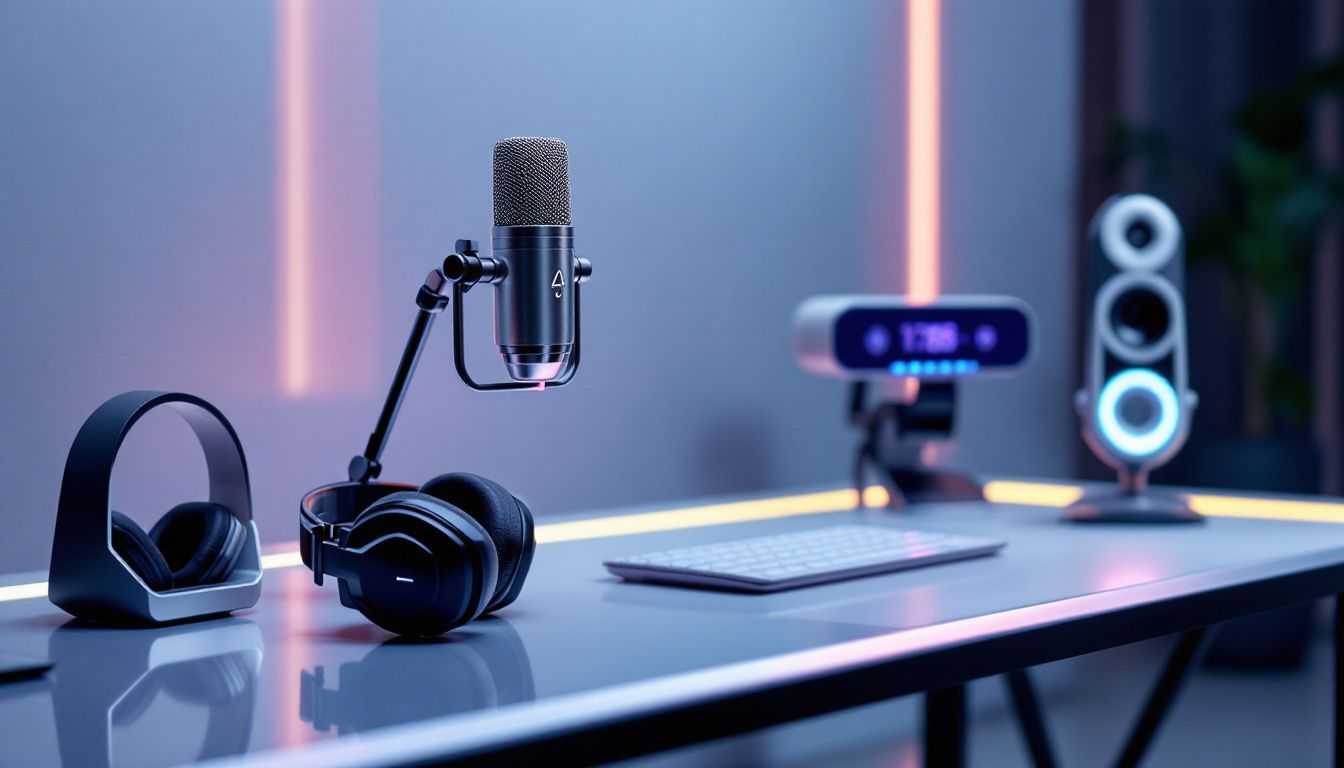
Remote work has become an integral part of our daily lives.. Meetings, presentations, and podcasts are now done online. However, poor audio quality can undermine your message. Background noise, echoes, or unclear voices can distract listeners and reduce engagement.. One solution is using a soundproof voiceover booth. A voiceover booth provides a controlled environment for superior sound quality.. But even if you don’t have a booth, there are many ways to improve your audio. Below are 10 practical tips to make sure your voice is heard clearly every time.
1. Choose a Quiet Location
The first step is to find a quiet spot. Avoid areas with loud appliances, traffic noise, or frequent disruptions from people or pets.. If possible, use a room with a door you can close. Small spaces work better because they have fewer echoes.A quiet and private corner of your home can serve as a recording space..
2. Use a High-Quality Microphone
Built-in microphones on laptops or headphones often lack the clarity required for professional audio.. Invest in a good external microphone. Look for a USB condenser microphone, as these are user-friendly and provide detailed sound capture. These are easy to use and pick up sound with more detail. Place the mic close to your mouth, about 6–12 inches away, for the best results.
3. Control Room Acoustics
Echoes and reflections can reduce the clarity of your voice.. Treat your room with sound-absorbing materials. These can make a big difference.
- Hang thick curtains over windows.
- Use rugs or carpets to cover hard floors.
- Place foam panels on walls to absorb sound.
Professional equipment isn’t always necessary for improving acoustics.. Even blankets or cushions placed on walls or over hard surfaces can effectively reduce echoes.. If you need professional-quality acoustics, a soundproof voiceover booth is an excellent option.
4. Reduce Background Noise
Eliminate as much background noise as you can. Begin by eliminating common noise sources such as fans, air conditioners, and washing machines.. Close windows to block outside noise. If noise persists, use a noise gate feature in your recording or meeting software to filter out low-level background sounds.. This filters out low-level background sounds.
5. Use Headphones
Audio feedback occurs when your microphone picks up sound from your speakers. This creates a distracting echo. Wearing headphones solves this problem. Use over-ear or in-ear headphones to prevent sound leakage, which can create distracting echoes.. This way, you hear clearly, and others don’t hear echoes.
6. Position Your Microphone Correctly
Even a good microphone won’t work well if it’s placed wrong. Keep the microphone 6–12 inches away from your mouth to avoid popping sounds.. Use a pop filter or foam cover to reduce plosive sounds, which occur when pronouncing ‘P’ and ‘B’ sounds.. These are the harsh “P” and “B” sounds that create bursts of air. Place the mic slightly off to the side and at the same level as your mouth.
7. Upgrade Your Internet Connection
A stable internet connection is crucial for live meetings, as poor connectivity can result in delays or dropped audio.. Poor connectivity can cause audio dropouts or delays. Use a wired Ethernet connection if possible. If you’re on Wi-Fi, move closer to the router or upgrade your plan for faster speeds.
8. Test Before Going Live
Always test your audio before starting a call or recording to ensure clarity and proper volume levels.. Speak into your microphone and listen to the playback.
Check for:
- Echoes or background noise.
- Volume levels (not too loud or too soft).
- Clarity of your voice.
Make adjustments as needed. Most video conferencing platforms provide built-in audio testing tools to help you identify issues before starting
9. Add Noise Reduction Tools
Audio enhancement tools are widely available to improve the quality of your recordings.”. Many apps and software programs have noise reduction features. For live calls, apps like Krisp use AI to remove background noise in real-time during live calls.. For recorded audio, use editing software like Audacity to clean up static or hums.
10. Consider a Soundproof Voiceover Booth
For the best audio quality, a soundproof voiceover booth is the ultimate solution. A soundproof voiceover booth minimizes external noise and effectively controls echoes, providing a highly controlled recording environment. These booths are great for professionals who record podcasts, webinars, or online courses. They come in different sizes and are easy to set up at home. While they are an investment, the improvement in sound quality is worth it.
Final Thoughts
Enhancing audio quality can be straightforward with the right approach.. Start with the basics like finding a quiet room and using a good microphone.ncorporate sound-absorbing materials and regularly test your setup for optimal performance.. If you need a permanent solution, consider a soundproof voiceover booth. It’s perfect for creating a noise-controlled space. With these tips, your voice will always sound clear and professional.