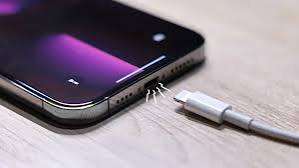
Experiencing issues with your iPhone not charging can be frustrating. Whether it’s your phone not charging at all charging slowly or charging intermittently, understanding and resolving these problems is essential. This comprehensive guide will walk you through common issues, possible causes and solutions to get your iPhone back to charging correctly.
Check Your Charging Accessories
Inspect the Charging Cable
The first step in troubleshooting charging issues is to inspect your charging cable. Look for any signs of wear and tear such as frayed wires or bent connectors. Damaged cables can prevent your iPhone from charging properly.
Examine the Power Adapter
Ensure that your power adapter is working correctly. Try using it with another device to see if it charges. If the adapter fails to charge other devices it might be the cause of your charging issues.
Use Genuine Accessories
Using non-genuine accessories can sometimes lead to charging problems. Always use Apple-certified cables and adapters to ensure compatibility and safety.
Check the Charging Port
Clean the Charging Port
Dirt dust and lint can accumulate in the charging port obstructing the connection between the charging cable and your iPhone. Use a soft brush toothpick or a can of compressed air to gently clean the port. Be careful not to damage the delicate pins inside the port.
Inspect for Damage
Look inside the charging port for any signs of damage such as bent pins or corrosion. If you notice any damage it might be necessary to have the port repaired or replaced by a professional.
Restart Your iPhone
Simple Restart
Sometimes a simple restart can fix minor software glitches that might be causing charging issues. Press and hold the power button until the “slide to power off” slider appears. Slide it to turn off your iPhone then press and hold the power button again to turn it back on.
Force Restart
If a simple restart doesn’t work try a force restart. For iPhone 8 or later, quickly press and release the volume up button then quickly press and release the volume down button and finally press and hold the side button until the Apple logo appears. For iPhone 7 and 7 Plus press and hold the volume down button and the side button simultaneously until the Apple logo appears. For iPhone 6s and earlier press and hold the home button and the power button until the Apple logo appears.
Update or Restore iOS
Update iOS
Keeping your iPhone’s software up to date can help resolve charging issues. Go to Settings General Software Update and check if there’s an update available. If there is, download and install it.
Restore iPhone
If updating your iOS doesn’t solve the problem you might need to restore your iPhone to its factory settings. Before doing this ensure you have a backup of your data. Connect your iPhone to your computer, open iTunes (or Finder on macOS Catalina and later) , select your device and choose “Restore iPhone.”
Check for Temperature Extremes
Avoid Overheating
iPhones are designed to work within a certain temperature range. If your device gets too hot it may stop charging to prevent damage. Ensure that your iPhone is in a cool environment while charging. Avoid charging it in direct sunlight or in hot environments.
Cold Temperatures
Charging your iPhone in extremely cold temperatures can also cause issues. If your iPhone is too cold, bring it to room temperature before trying to charge it.
Battery Health
Check Battery Health
Over time your iPhone’s battery may degrade affecting its ability to hold a charge. Go to Settings Battery Battery Health to check the maximum capacity of your battery. If it’s significantly degraded you might need to replace the battery.
Optimize Battery Charging
iOS includes a feature called “Optimized Battery Charging” that reduces battery aging by learning your charging routine and waiting to finish charging past 80% until you need to use it. Ensure this feature is enabled by going to Settings Battery Battery Health.
Use Wireless Charging (if applicable)
Test Wireless Charging
If you have an iPhone 8 or later you can use wireless charging. Test if your iPhone charges wirelessly by placing it on a Qi-certified wireless charger. If it charges wirelessly but not with a cable the issue might be with the charging port or cable.
Wireless Charging Issues
Ensure that there are no obstructions between your iPhone and the wireless charger. Remove any metal or magnetic objects as they can interfere with the charging process. Also check that your iPhone is properly aligned on the charging pad.
Seek Professional Help
Apple Support
If none of the above steps resolve your charging issues it might be time to contact Apple Support or visit an Apple Store. They can run diagnostics on your iPhone and determine if there’s a hardware problem that needs to be addressed.
Authorized Service Providers
Alternatively you can visit an Apple Authorized Service Provider. These professionals are trained to handle Apple products and can provide reliable repair services.
Conclusion
Check this site for troubleshooting tips on resolving charging issues with your iPhone. Charging problems can stem from a variety of causes ranging from faulty accessories to software glitches or hardware damage. By systematically checking each potential cause, you can often identify and resolve the issue yourself. If all else fails, seeking professional help ensures that your iPhone will be back to charging properly. Remember to always use genuine accessories and keep your iOS updated to minimize the risk of charging problems in the future.